https://www.wikihow.com/Update-Router-Firmware
Connect your router to your computer via Ethernet.
Find your router's IP address printed on its sticker.
Type the IP address into your browser.
Log in to your router service.
Navigate to the "Firmware" or "Updates" page.
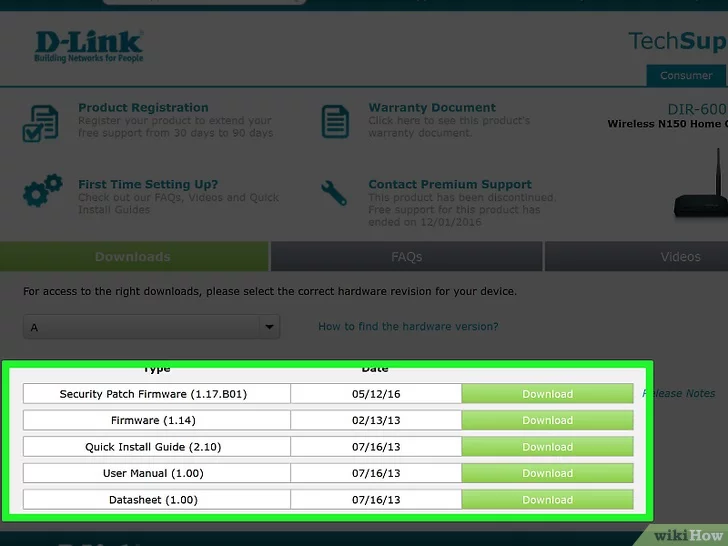
Download and install the latest firmware.
Step 1:
Check the physical router for the address. You can access your router by entering its IP address into your web browser.[2] Most routers have this IP address printed on the sticker affixed to the bottom.
Step 2:
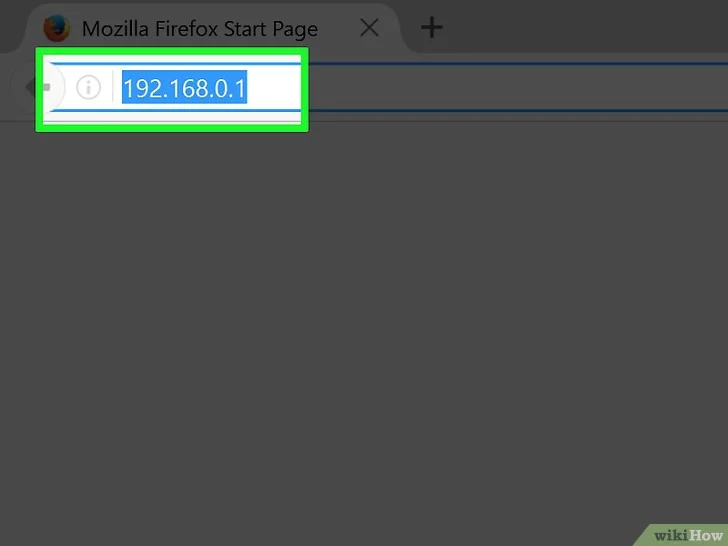
Enter your router's IP address into a web browser's address bar. You can find this address by following the methods outlined above. Enter the address as if you were visiting a webpage.
Step 3:
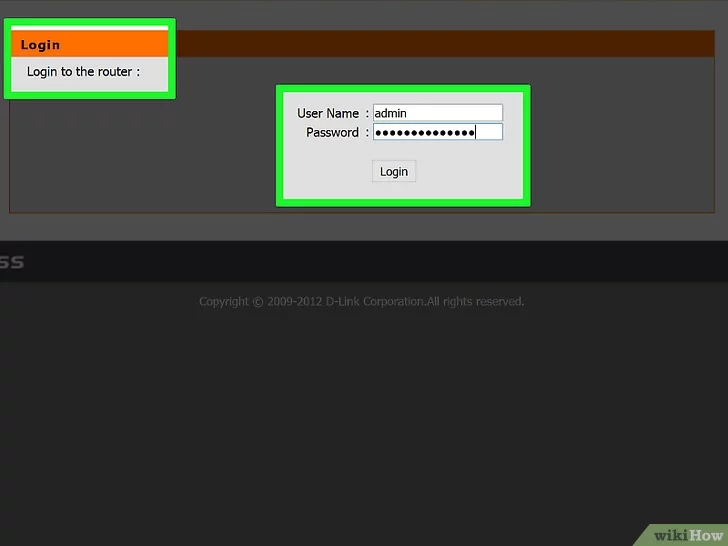
Enter your login information. When you try to open the configuration page, you'll be prompted to enter your router login information.
Step 4:
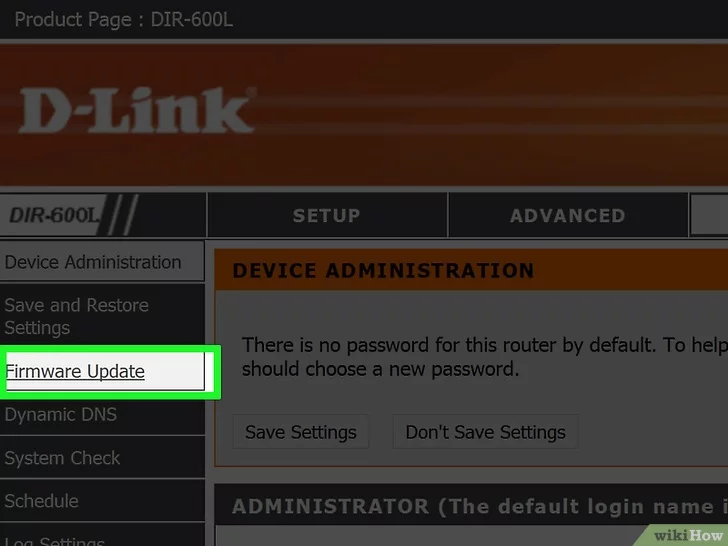
Open the "Firmware," "Router Upgrade," or "Update" page. The name of this page will be different for every different router manufacturer. The location varies, but you can usually find it in the "Administration," "Utilities," or "Maintenance" section.
Step 5:
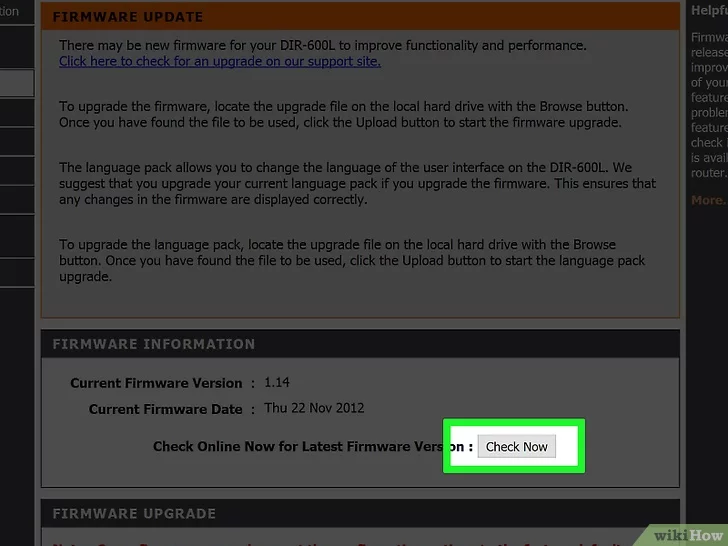
Click the "Check" button to see if updates are available. Many routers have a button that will check to see if a new version of the router's firmware is available.
Step 6:
Download the latest firmware files if presented with a link. Depending on the router, you may be provided a link to the latest firmware version, or the router may even be able to download it on its own.