

System Signup and Workflow
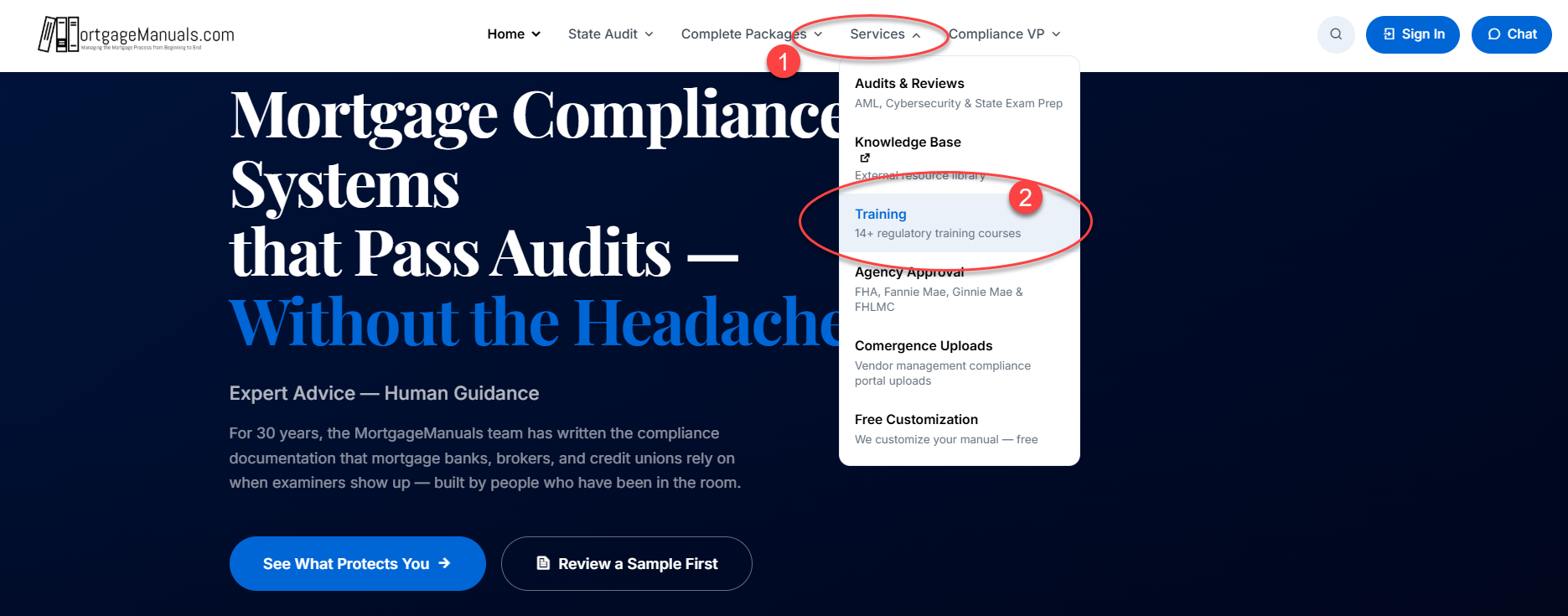
Navigating to Content
All courses are available to all your employees. However, we organized the menu in the order we see people consume them, starting with the most frequently required courses. Users do not have to be assigned. They can self-select.
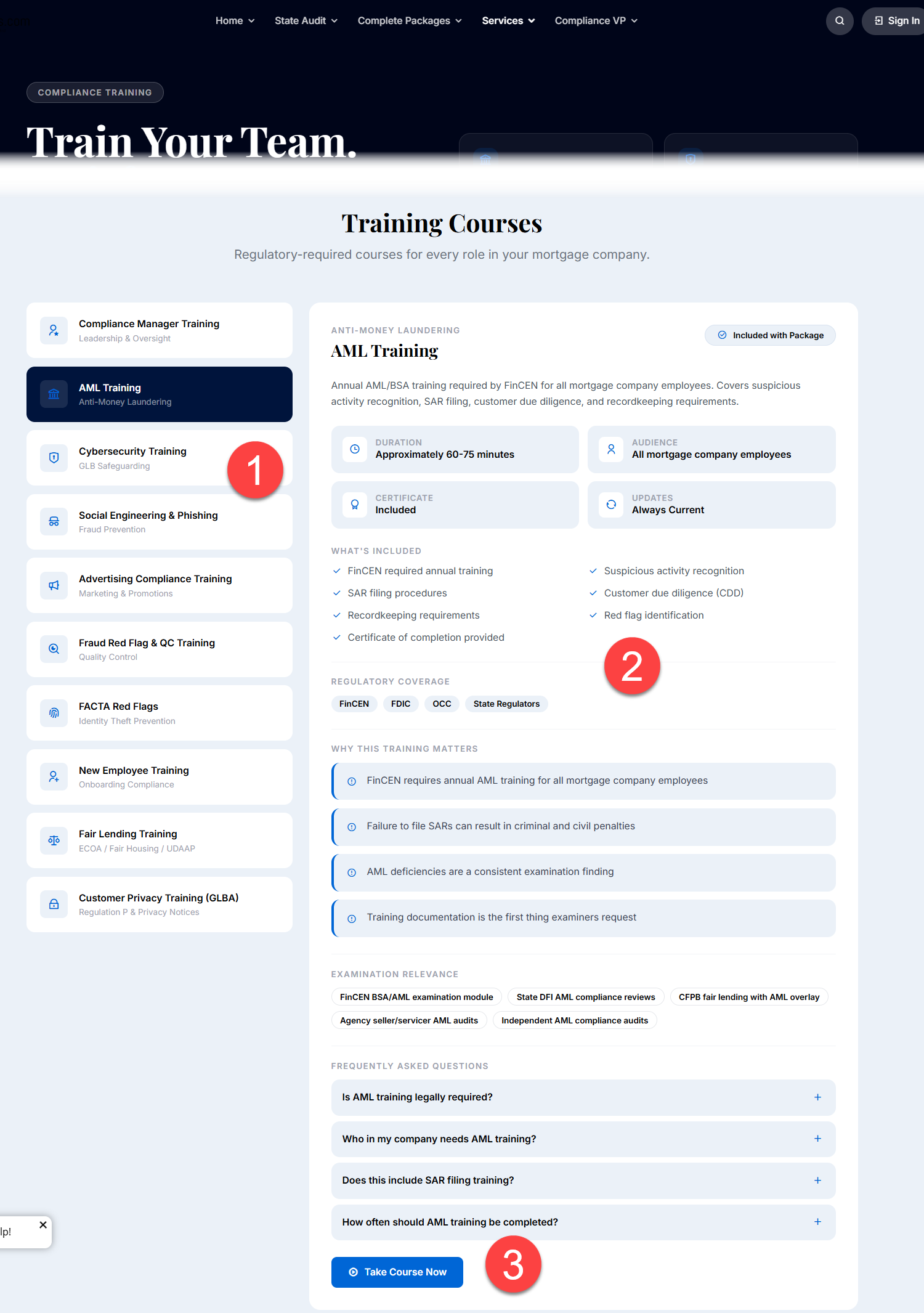
Course Level Password
To protect the value of our materials, the general public cannot take courses. You can request a course password that applies to ALL courses.
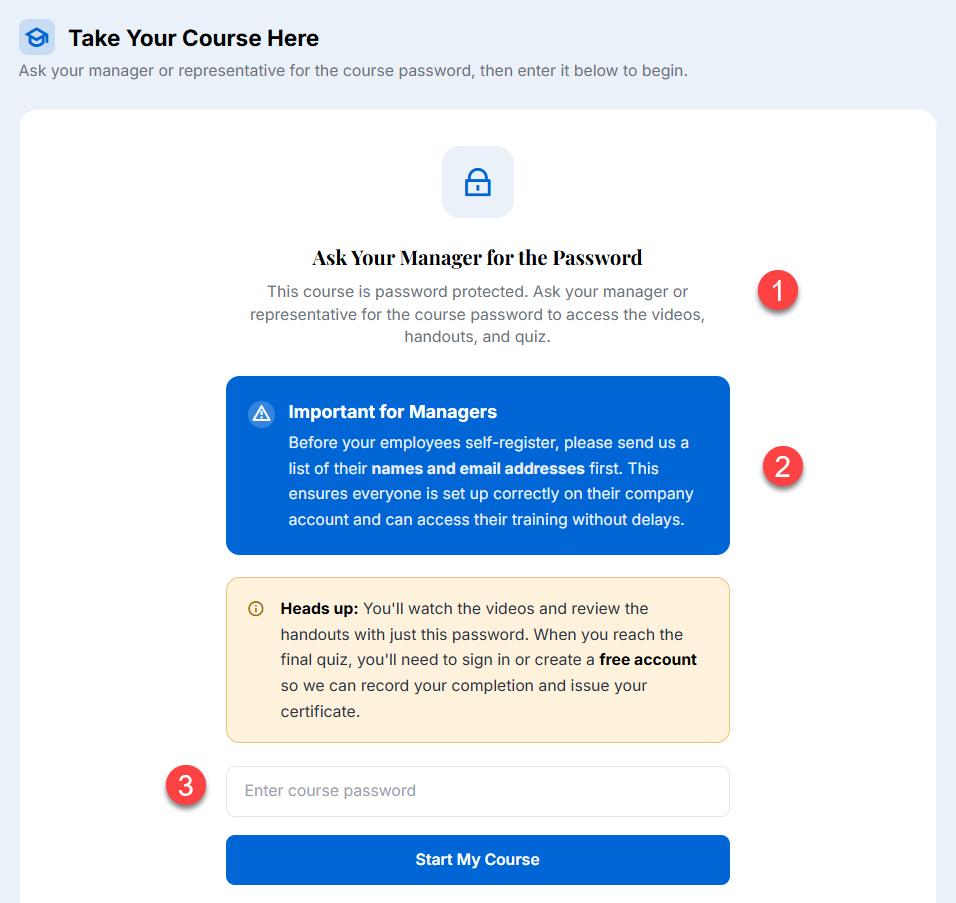
Signing Up/Signing In - You don't have to sign in to TAKE a course, only to take the quiz and get a certificate
Company Managers
Please note that the workflow is designed to protect your privacy, so while YET ANOTHER LOGIN is a pain, it will allow a few things.
1.) You can send us a list of employees, and we can upload them for you.If employees create their own logins, we have to approve them and add them as employees, which makes importing your team much easier for everyone.
2.) As a manager, you have a "Company Specific" reference for your policy & procedure-related training - the courses align with the taxonomy of your policies and procedures.
Workflow - Employees Join an Existing Company, Managers Add a Company
A new person can either join an existing company or request a brand-new one. The sign-up screen handles both — the split happens on the “Company” field.
Path A — Joining an existing company
Step 1 — The person goes to the sign-in page
They land on mortgagemanuals.com/auth (or click Client Portal → Sign In).
It opens on the Sign In tab, so they click Sign Up.
Step 2 — They pick their company
The Company field is a dropdown populated with all existing companies.
They select theirs (e.g., “Mortgage Manuals LLC”).
Step 3 — They fill in the details
Contact Name, Phone, Email Address, Password → Create Account.
Step 4 — Email confirmation
They get a confirmation email → click the link → it bounces them back to /auth.
Step 5 — They sign in
They log in with the email + password they just used and land in the Client Portal (/client-portal) with a normal client/employee role.
That’s it!
Path B — Requesting a brand-new company - Managers
Step 1 — go to /auth and click Sign Up.
Step 2 — The company doesn’t exist
Click “I don’t see my company — request access”, which swaps the dropdown for a free-text company name box.
Step 3 — They enter their info Company name (e.g. “Acme Mortgage LLC”), Contact Name, Phone, Email, Password → Create Account.
Step 4 — They get a confirmation message, not an instant account
The page shows: “Thanks! We’ve received your request. We’ll set up your company and assign a manager — you’ll get an email with access instructions shortly.”
Step 5 — The admin gets the email and acts
The admin does three things:
Add Company — creates the company (e.g. “Acme Mortgage LLC”).
Name a Manager (Managers tab) — enters the manager’s name, email, and company → this fires the manager invite.
Assign the client — from the Unassigned tab, attaches the requesting person to that company so they appear on the roster.
Step 6 — The manager receives an invite
You get a “You’ve been invited as a manager” email →
click “Set up your account” →
it lands you back on /auth, which now detects the invite and shows a Set Your Password screen.
Step 7 — The manager sets a password and signs in
After setting it, they’re asked to sign in again with the new password, then land in the Manager dashboard (/manager).